Adventures in Java and JDownloader
What in the world?
I found myself wanting to mess around with Java again, to be fair I haven't touched Java in a long time, a really long time. The challenge with diving back into a programming language or even using a new language is finding a reason to dive back in. Developers can pickup a new language quite easily, of course there are subtle nuances to each language but really, they are mostly the same...
The Project
The project is to contribute a plugin to JDownloader. I like many others use JDownloader as it's free, open source and awesome. Funnily enough I always think of it as a good example of a java desktop application.
Getting Setup
There are instructions to get started with JDownloader development on the JDownloader website and I must say it's actually quite simple to get started. See here
Follow the instructions on the page and have everything ready to go.
I had a lot of build errors when I first started, essentially I followed the instructions and things were going alright, until I found myself with build errors everywhere. I had to think back to when I last developed in Java and remembered that you can configure build paths and project relationships.
Of course I didn't just rely on intuition, and so I went to the old Google machine. I found the solution to the build problems, it's silly really. I suspect that the JDownloader team assume you know the basics of Java to contribute (rightly so) and don't mention that you need to do some linking.
Your workspace in Eclipse should look something like the following:

Compiler Compliance Level
I'm not sure why but for some reason, in the AppWorkUtils and JDownloader projects, the "Compiler Compliance Level" was set to "1.8", this stopped the project from building.
I recommend check that this is set correctly for each of the projects. In my case I set the value to "23".

Configure Build Paths
This needs to be done for each of the projects however some differ to others, so follow carefully.
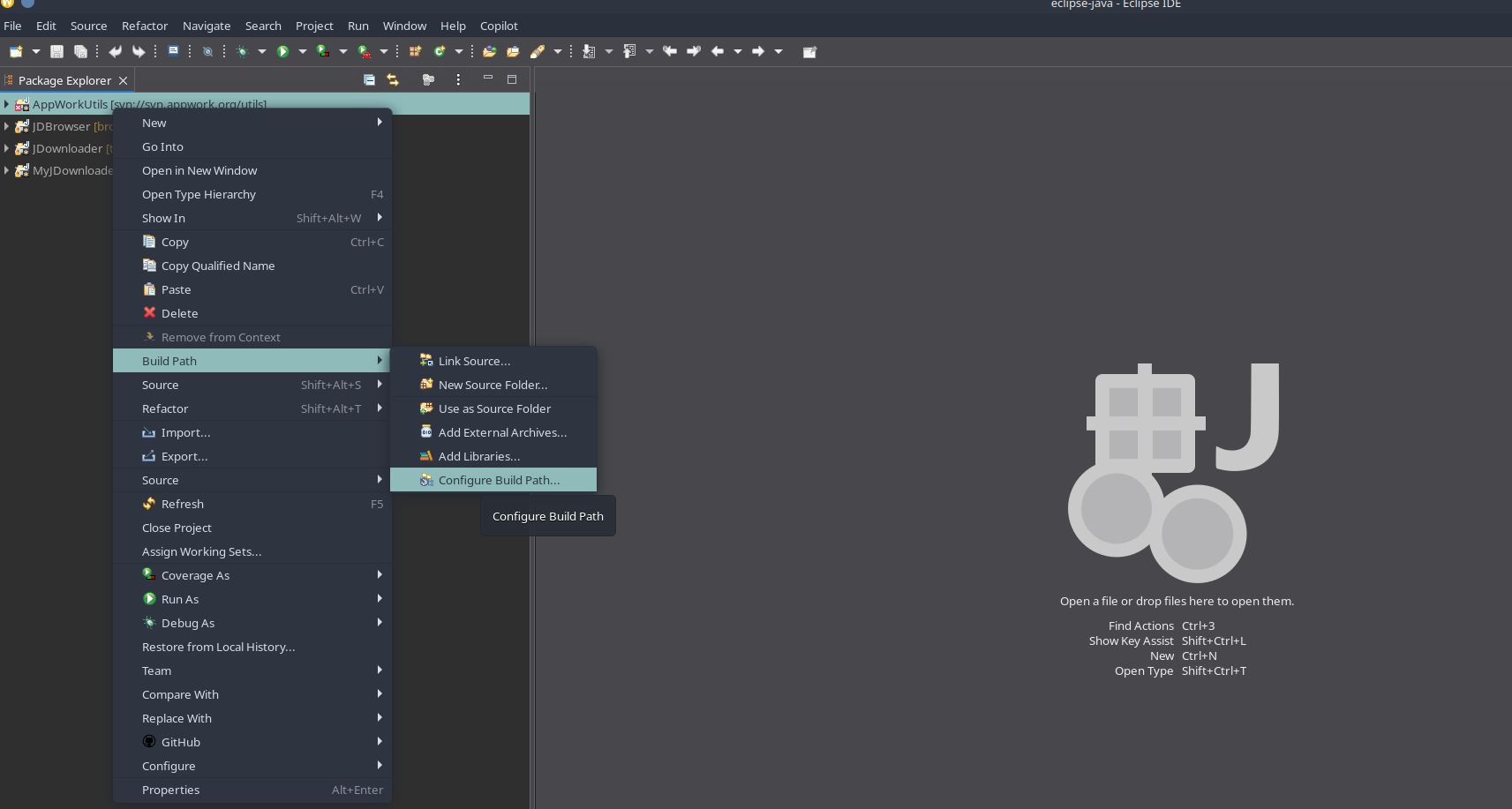
For each project go to "Configure Build Path" as above.
You will then need to modify the "Java Build Path" as follows:
Ensure that each project has all items selected, you can do this easily by clicking "Select All"
Be sure to click "Apply".
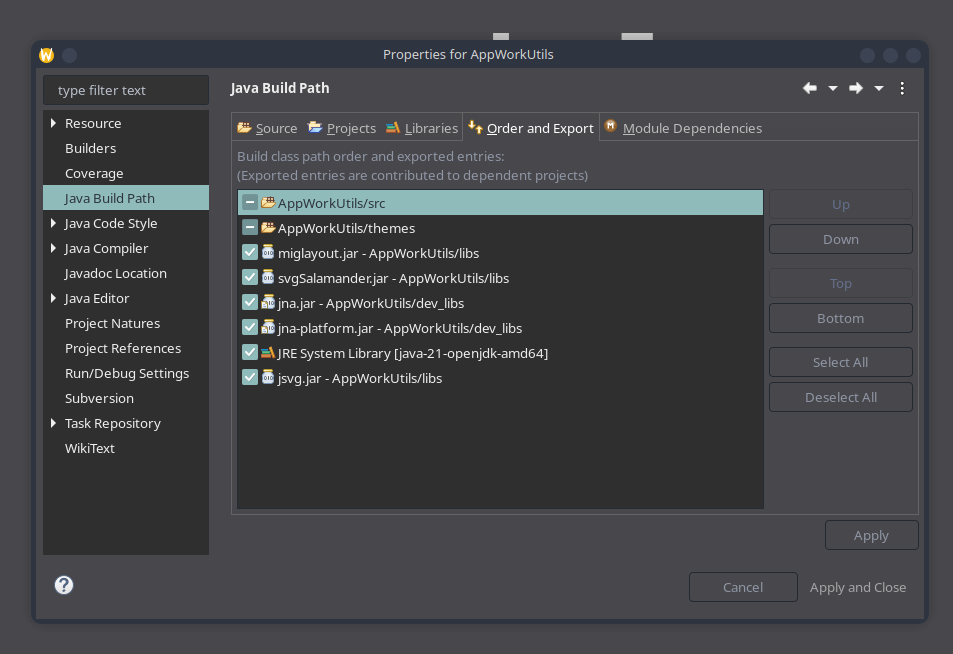
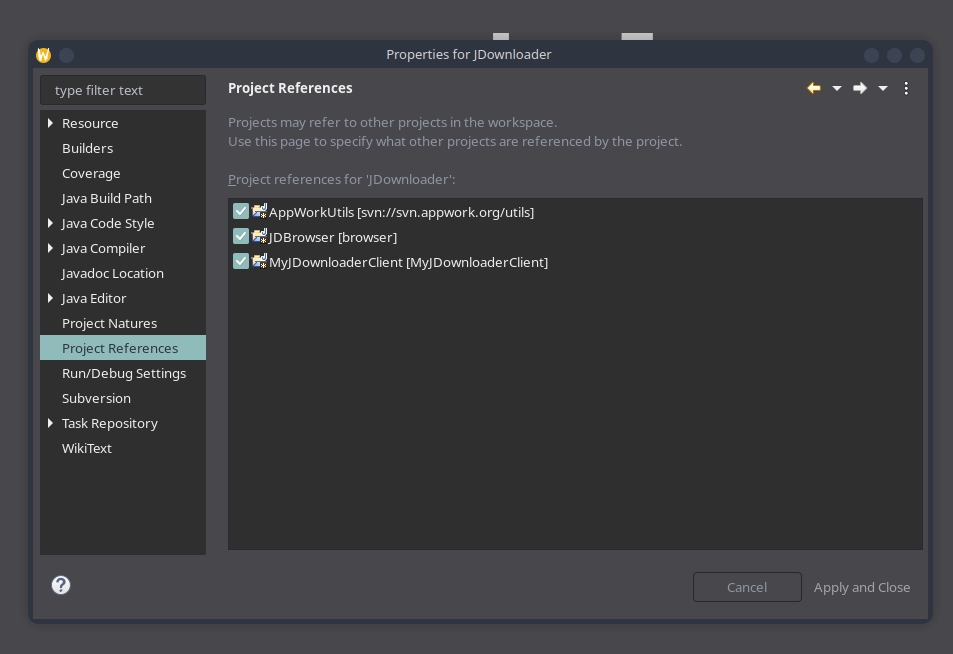
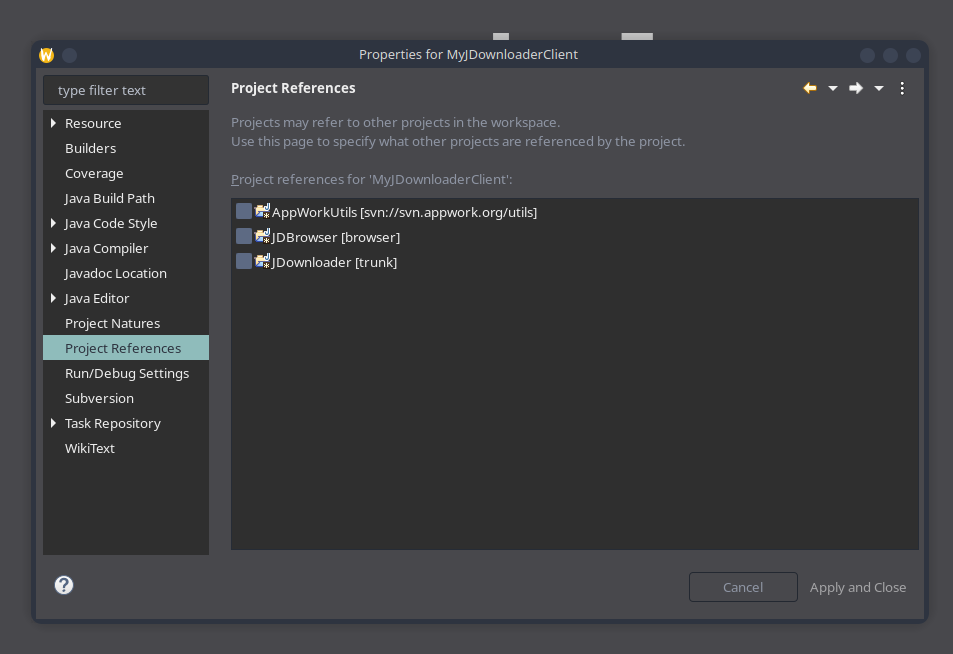
Configure Project References
This is a little more subtle given that some of the projects don't need references and other reference all the other projects.
To simplify this, I'll just include what is needed for each project. Let's go.
AppWorkUtils
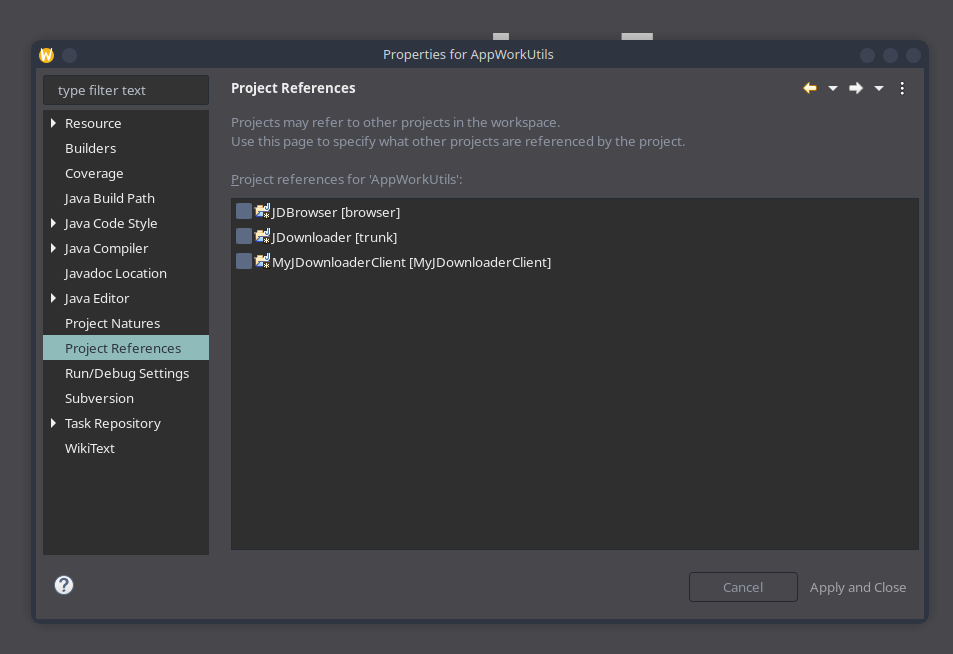
JDBrowser
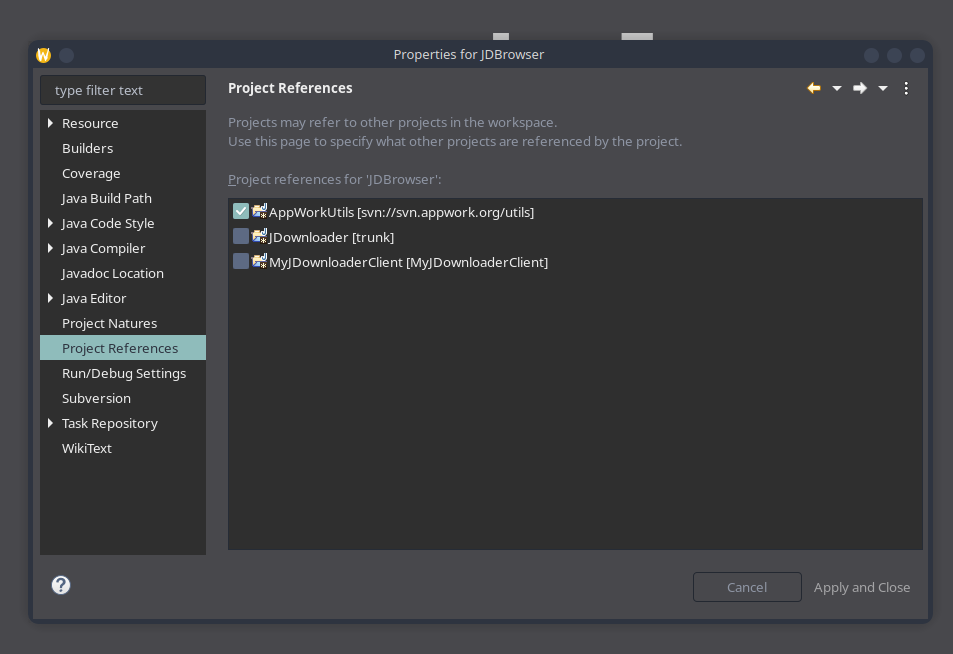
JDownloader
MyJDownloaderClient
Lo and Behold, we can run and debug JDownloader

🎉 Congrats — Enjoy!